Configure Licenses
After downloading an evaluation version of J-Integra® Espresso or purchasing a J-Integra® Espresso license, you should receive a J-Integra® Espresso license file by email. The license file is called espresso_license.xml. The following section describes how to install this license.
The J-Integra® Espresso license can be installed in the configuration file or Windows Registry. The J-Integra® Espresso runtime first checks the configuration file for valid license information. If none is found, then it attempts to load the license information from the Windows Registry. It may be that you have several different configuration files, if installing J-Integra® Espresso license in the configuration file, you must install the license in each one.
To install your J-Integra® Espresso license:
- Choose "Configure License" option from the Overview window.
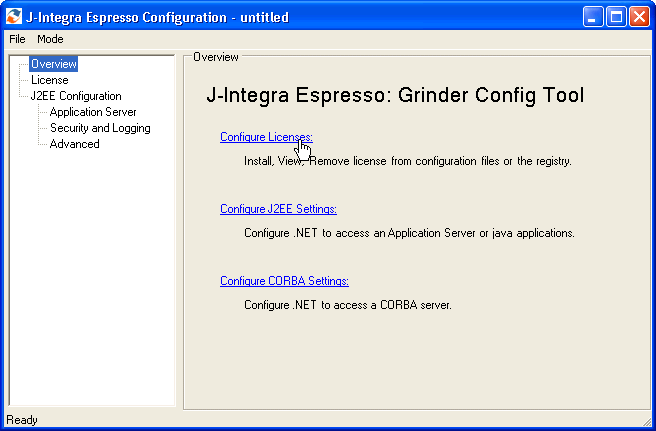
- Click "Install" then browse to the espresso_license.xml file open it. You should see the license information displayed under License Details.
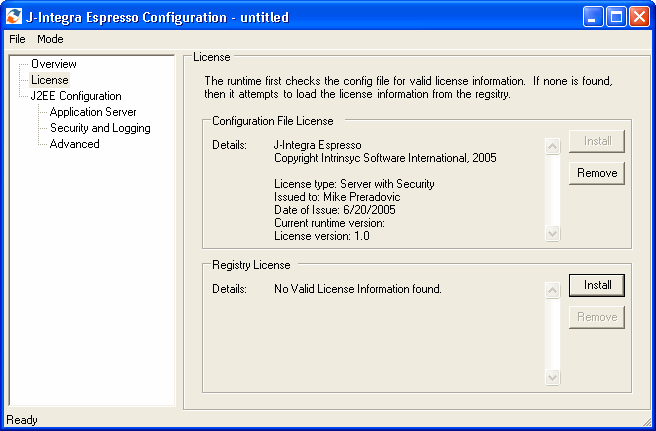
- Save the configuration file by going to File - Save (Save only needed for installing license in configuration file).
Select the Configuration Mode (J2EE or CORBA)
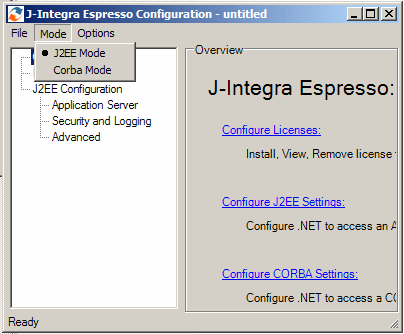
- J2EE Mode: This mode sets up the current configuration file such that the runtime will communicate only with a J2EE application server. This mode is the default, and is easier to configure. Grinder's J2EE mode is actually a "wrapper" for a CORBA configuration.
- Corba Mode: This mode sets up the current configuration file such that the runtime will communicate with any standard CORBA server. This mode is more versatile, but also more difficult to configure.
J2EE Configuration
When in J2EE Mode, Grinder presents 3 sets of configuration options in the left hand pane:J2EE Configuration: J2EE Application Server
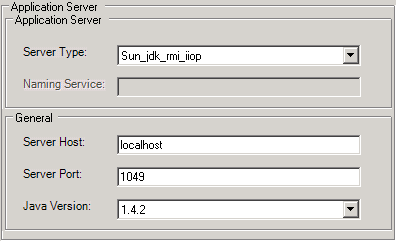
- Application Server:
- Server Type: Specifies the type of application server to be used, which affect the default values used by Espresso. Valid values include: Weblogic, Websphere, JBoss, sun_jdk_rmi_iiop (Sun's default RMI implementation), and Custom. Each selection will affect the default value for the Server Port and Server Host fields.
- Naming Service: If the server type is set to Custom, this field will be enabled, allowing the user to set desired naming service for the specified application server. Entries should be of the form: corbaloc:iiop:1.2@machine_X:6578/SomeNameService
- General:
- Server Host: The hostname of the Java application server
- Server Port: The TCP port of the Java application server
- Java Version: The Java version used by the application server that hosts the Java classes.
J2EE Configuration: Security and Logging
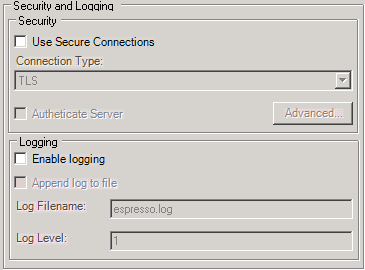
- Security:
- Use Secure Connections: Selecting this item will cause Espresso to use TLS or SSL encryption (selected from the drop-down list> when communicating with the application server.
- Authenticate Server:
- Authenticate Server: Causes Espresso clients to explicitly verify the application server's certificate against their keystores.
- Logging:
- Enable Logging: Causes Espresso to write useful debugging information to the specified log file
- Append to Log File: Causes Espresso to add logging information to specified log file, rather starting anew.
- Log Filename: The name of the log file used by Espresso
- Log Level: Determines the type and amount of information. Can be one of the following value:
- Level=1 (critical exceptions)
- Level=2 (tracing of connections)
- Level=5 (tracing of requests/replies)
- Level=6 (GIOP message dumps)
- Level=10 (Fragment dumps)
- Level=11 (SSL/TLS message dumps)
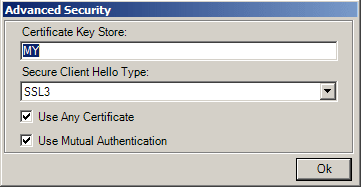
- Certificate Key Store: Determines where Espresso will look for certificates. Default is MY.
- Secure Client Hello Type: Determines whether a TLS1 or SSL3 hello will be sent to the server.
- Use Any Certificate: Causes Espresso to use the first certificate that it finds that supports the selected 'hello type'.
- Use Mutual Authentication: Specifies that the server requires authentication of the client.
J2EE Configuration: Advanced
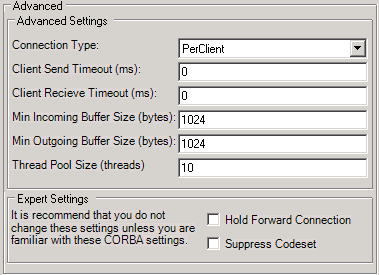
- Connection Type: May be either PerClient(A single connection established for each client) or PerObject(A dedicated connection for each object created by Espresso), which is more resource intensive.
- Client Send Timeout: Client Send Timeout in Milliseconds.
- Client Receive Timeout: Client Receive Timeout in Milliseconds.
- Min Incoming Buffer Size: Sets the minimum incoming buffer size in bytes. Default is 1024.
- Min Outgoing Buffer Size: Sets the minimum outgoing buffer size in bytes. Default is 1024.
- Thread Pool Size: Specifies how many threads to create in the server thread pool. Default is 10.
- Hold Forward Connection: Tells runtime whether to hold forward connections open. Default is false.
- Sup press Codeset: Tells runtime whether to supress codeset. When set to 'true' the Windows default setting is assumed and no codeset information is send in the service context.
CORBA Configuration
When in CORBA Mode, Grinder presents a different 3 sets of configuration options in the left hand pane:CORBA Configuration: ORB and Security

- Orb Settings
- Orb Identifier: Identifier for an ORB instance
- Orb Port: The TCP port of the ORB instance
- Naming Service URI: URI of the CORBA naming service, of the form: corbaloc:iiop:1.2@machine_X:6578/SomeNameService
- Security
- Use Secure Connections: Causes the Espresso runtime to use SSL or TLS encryption via the Connection Type drop down list.
- Authenticate Server: Causes Espresso clients to explicitly verify the application server's certificate against their keystores.
- Certificate Key Store: Determines where Espresso will look for certificates. Default is MY.
- Secure Client Hello Type: Determines whether a TLS1 or SSL3 hello will be sent to the server.
- Use Any Certificate: Causes Espresso to use the first certificate that it finds that supports the selected 'hello type'.
- Use Mutual Authentication: Specifies that the server requires authentication of the client.
CORBA Configuration: Logging and Compatibility
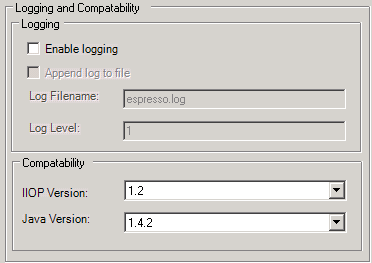
- Logging
- Enable Logging: Causes Espresso to write useful debugging information to the specified log file
- Append to Log File: Causes Espresso to add logging information to specified log file, rather starting anew.
- Log Filename: The filename of the log file used by Espresso
- Log Level: Determines the type and amount of information. Can be one of the following value:
- Level=1 (critical exceptions)
- Level=2 (tracing of connections)
- Level=5 (tracing of requests/replies)
- Level=6 (GIOP message dumps)
- Level=10 (Fragment dumps)
- Level=11 (SSL/TLS message dumps)
CORBA Configuration: Advanced
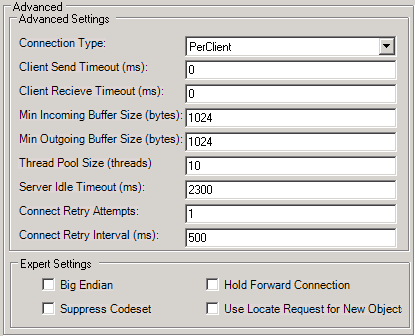
- Connection Type: May be either PerClient(A single connection established for each client) or PerObject(A dedicated connection for each object created by Espresso), which is more resource intensive.
- Client Send Timeout: Client Send Timeout in Milliseconds.
- Client Receive Timeout: Client Receive Timeout in Milliseconds.
- Min Incoming Buffer Size: Sets the minimum incoming buffer size in bytes. Default is 1024.
- Min Outgoing Buffer Size: Sets the minimum outgoing buffer size in bytes. Default is 1024.
- Thread Pool Size: Specifies how many threads to create in the server thread pool. Default is 10.
- Server Idle Timeout: Sets the idle timeout of a server. After the idle time interval has elapsed the server sends a 'close connection' message to the client.
- Connect Retry Attempts: Specifies the number of times Espresso should attempt to make a connection before giving up.
- Connect Retry Interval: Specifies the amount of time between connection attempts.
- Big Endian: Specifies that Espresso should use Big Endian byte ordering
- Hold Forward Connection: Tells runtime whether to hold forward connections open. Default is false.
- Suppress Codeset: Tells runtime whether to suppress codeset. When set to 'true' the Windows default setting is assumed and no codeset information is send in the service context.
- Use Locate Requests for New Object: Defines whether the ORB issues a locate request for any new object.
Load/Save Configurations from/to Files
Once users have had a chance to modify the configuration as desired, they may save the configuration to an Espresso configuration file by selecting the Save option from the File Menu.Users may also load existing configurations for modifications by selecting the Open menu item from the File menu, and selecting the desired filed.